
If you’ve ever pulled up to a public EV charger and spent five minutes fumbling with a third-party app, a swipe card, and spotty station Wi-Fi, you’ll appreciate what Genesis has built. Genesis In-Car Pay EV charging is a genuinely smarter way to charge, and here at Genesis of Milwaukee in Waukesha, WI, customers are already using it to make charging stops as easy as a gas fill-up used to be. The tech is baked right into the MyGenesis app, so whether you’re driving an Electrified GV70 or a GV60, keeping your battery topped off has never been this seamless.
Genesis In-Car Pay EV charging — also called In-App Charging — is a built-in feature of the MyGenesis app that centralizes every step of the public charging experience. Instead of juggling separate network accounts and apps, you can search for stations, get turn-by-turn directions, start a session, and pay for your charge all from one screen.
Here’s the context that matters: most EV drivers have had to maintain memberships with multiple charging networks. That means different apps, different accounts, and sometimes different cards at the station. “What is in-car pay EV charging in plain terms?” It’s Genesis’s answer to that fragmentation — a single, secure, integrated system that lives inside an app you already use to manage your vehicle. Genesis Pay stores your credit card securely and bills you automatically when a session ends. You won’t be hunting for a payment terminal or waiting for a text receipt from three different services. It’s the kind of thing that makes public charging feel less like an inconvenience and more like just another part of the drive.

How to use Genesis In-Car Pay EV charging is straightforward once you’ve completed setup. Here’s exactly how a charging stop works once your account is active.
Step 1: Open the MyGenesis App and Tap the Charge Icon
On the GIA (Genesis Intelligent Assistant) app’s home screen, tap the Charge icon. This opens the charging map with all nearby compatible stations pinned.
Step 2: Filter and Find Your Station
Use the filter options to narrow down stations by charging network, charging speed (Level 2 or DC fast), connector type (CCS, NACS/Tesla), or distance from your current location. You can also save favorite stations for quicker access on future trips.
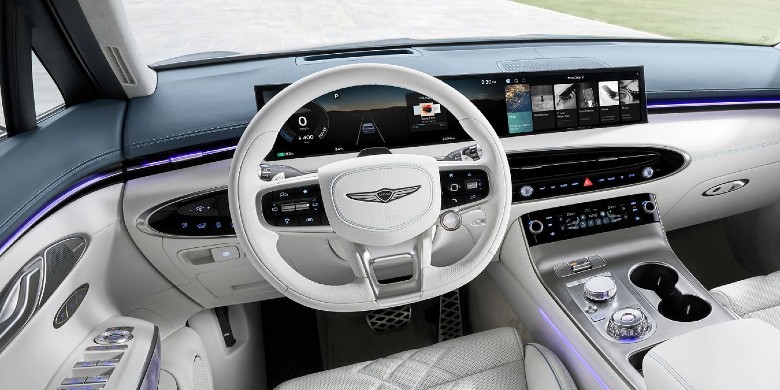
Step 3: Send It to Your Car or Start Navigation
Once you’ve picked a station, tap Send to Car. The station address transfers directly to your vehicle’s infotainment navigation system. You can also start navigation from the app itself if you prefer.
Step 4: Plug In and Activate
When you arrive, plug in your Genesis EV. The app will display the station info and prompt you to start the session. Tap to begin — Genesis Pay handles the payment in the background using your stored card.
Step 5: Monitor and Complete Your Session
You can track the session status, current charge level, and estimated completion time from the app. When you’re ready to leave, end the session in-app or simply unplug. The receipt is automatically logged to your account.
This table provides a quick reference on how each part of the experience works.
| Feature | What It Does | Where to Find It |
|---|---|---|
| Station Search | Filters nearby chargers by network, speed, connector, and distance | Charge icon → MyGenesis app |
| Send to Car | Pushes the station address to the in-vehicle navigation | Station detail screen in the app |
| In-App Activation | Starts and monitors your charging session remotely | App home screen or station view |
| Genesis Pay | Stores your card and auto-bills per session | Settings → Genesis Pay in app |
| Plug & Charge | Fully automatic auth + payment at select stations — no app needed | Charge icon → Plug & Charge setting |
| Route Planning | Calculates charging stops on long trips | Available in-app and on the infotainment screen |
Getting everything configured takes just a few minutes. Here’s how to get both In-App Charging and Plug & Charge ready before your next road trip.
Note: You can activate or deactivate Plug & Charge at any time. If you’re lending the vehicle to someone else, it’s a good idea to deactivate so sessions don’t charge to your card automatically.
The biggest wins here aren’t just about convenience — they change how you think about public charging altogether.
First, there’s the simplicity factor. Before features like this, an EV driver on a long trip might need accounts with ChargePoint, EVgo, and one or two other networks to reliably charge across the country. How to use Genesis In-Car Pay EV charging makes that a non-issue — one app, one card, access to IONNA, Tesla Supercharger, ChargePoint, EVgo, EV Connect, Flo, and Shell stations, plus additional roaming partners. That’s a massive portion of the U.S. charging network covered through a single interface.
Second, route planning is genuinely smarter. The dynamic EV route planner doesn’t just show you where chargers are — it accounts for your vehicle’s current range, calculates optimal stops, and presents a complete plan before you leave. That kind of planning used to require third-party apps running alongside a navigation app and a mental math exercise. Now it’s integrated.
Finally, Plug & Charge brings a level of ease that’s hard to overstate. There are no screens to tap, no cards to tap, no app to open. You park, plug in, and walk away. The car does the rest.
Genesis has made real progress in solving one of the biggest friction points of EV ownership, and “What is in-car pay EV charging?” is really just the beginning of a broader shift toward a more connected, effortless ownership experience. Whether you’re commuting around Waukesha or taking the Electrified GV70 on a longer haul, these tools mean your charging plan is already built in before you even hit the highway. Our team at Genesis of Milwaukee is happy to walk through any of this in person — and if you’re still deciding which Genesis EV is the right fit, there’s no better place to start that conversation.
Curious about the Electrified GV70, GV60, or any other Genesis EV in the lineup? Stop by Genesis of Milwaukee in Waukesha, WI, or reach out to schedule a test drive. Our team can show you In-App Charging and Plug & Charge in action — it’s the kind of thing that’s easier to experience than to explain.

Currently, In-App Charging and Plug & Charge are available on the 2026 Electrified GV70 and 2026 GV60. Genesis has confirmed plans to expand both features across the full EV lineup.
No — that’s the whole point. Genesis In-App Charging gives you access to a broad network of stations, including IONNA, Tesla Supercharger, ChargePoint, EVgo, EV Connect, Flo, and Shell through the single MyGenesis app and your Genesis Pay account.
There’s no fee to activate the base In-App Charging service. Genesis Pay requires a stored credit card, which is billed automatically when you complete a charging session. You can unenroll from Genesis Pay at any time through the app’s subscription menu.
Open the MyGenesis app, tap the Charge icon, and select the Plug & Charge option. Tap Deactivate — it takes about 10 seconds. You can reactivate just as easily when you’re back behind the wheel.
Plug & Charge currently works at IONNA, Tesla Superchargers, and select ChargePoint DC fast-charging stations. Genesis is actively expanding the list of compatible networks, so check the app for the latest coverage.
Yes. Once a session is active, you can track real-time charge status, estimated completion time, and session details from anywhere in the app — no need to be in or near the vehicle.